How to Use Visual Studio Code for Beginners
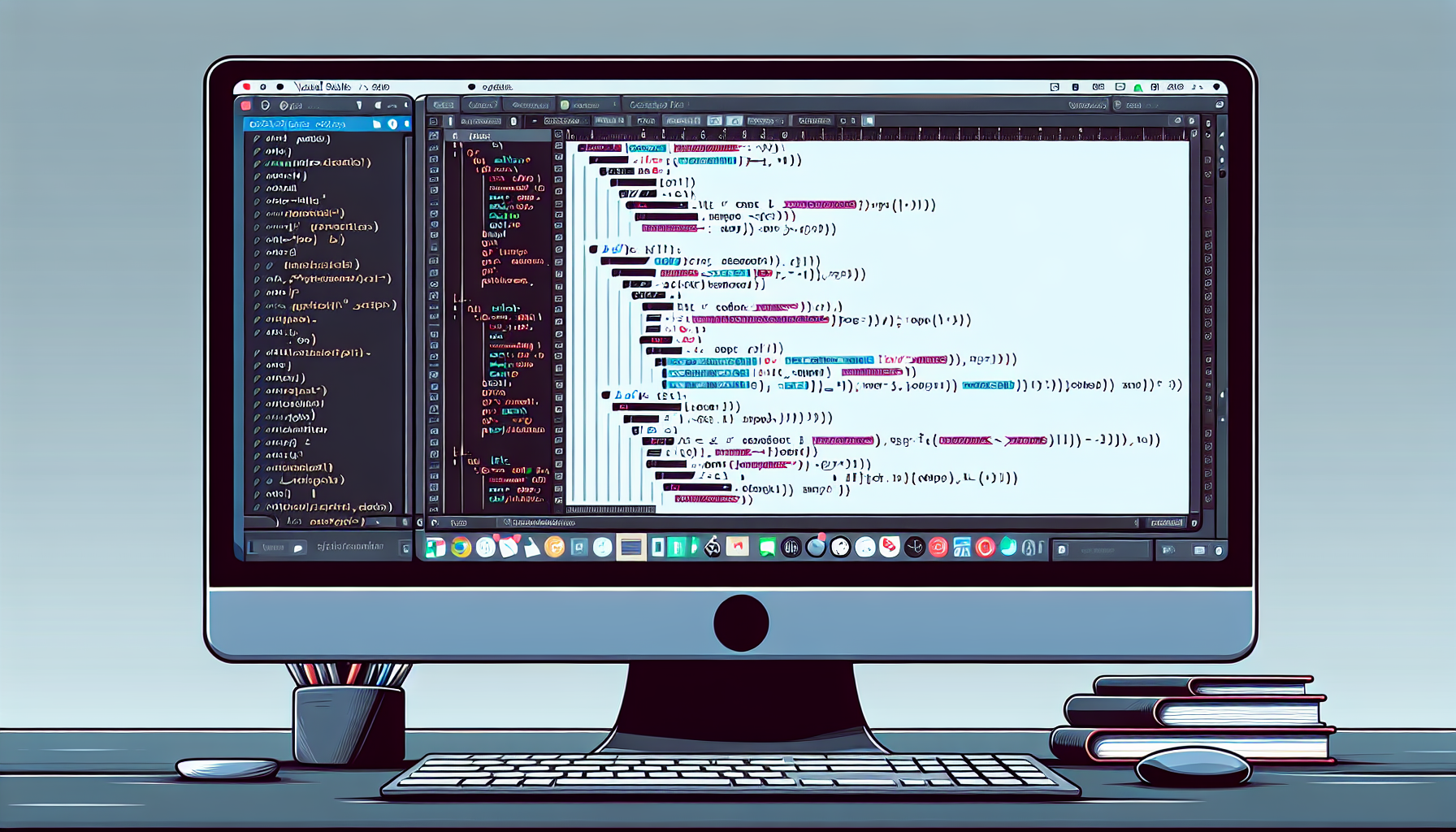
Visual Studio Code (VS Code) is a popular source code editor developed by Microsoft. It's lightweight, free, and supports a variety of programming languages. This tutorial will guide you through the basics of using VS Code.
Prerequisites
- A computer with Windows, Linux, or macOS operating system.
- Basic knowledge of using a computer.
- An internet connection to download VS Code.
Steps
Step 1: Download and Install Visual Studio Code
- Visit the Visual Studio Code download page.
- Choose the version that matches your operating system (Windows, Linux, or macOS).
- Download and install the software by following the prompts.
Step 2: Launch Visual Studio Code
- After installing, launch VS Code. You will see a welcome page.
- Familiarize yourself with the user interface. It consists of an activity bar on the side, a sidebar, a status bar, and an editor area.
Step 3: Open a Folder
- To start working on a project, you need to open a folder. Click on
File > Open Folder...and select your project folder.
File > Open Folder...
Step 4: Create a New File
- To create a new file, click on the new file icon in the explorer or use
File > New File.
File > New File
Step 5: Write Some Code
- Let's write a simple Python program. Type the following code into your new file.
print("Hello, World!")
Step 6: Save and Run Your Code
- Save your file with a
.pyextension for Python. For example,hello.py. - To run your code, open the terminal by clicking on
Terminal > New Terminal. - In the terminal, type
python hello.pyand press enter.
python hello.py
Expected output:
Hello, World!
Common Pitfalls to Avoid
- Not saving your file with the correct extension: The extension tells VS Code the type of file and the language used so it can provide appropriate features.
- Not using the correct path in the terminal: When running your file from the terminal, ensure you're in the correct directory (folder). You can check your current directory using the
pwdcommand in Linux/macOS orcdcommand in Windows. - Ignoring error messages: If your code doesn't run as expected, carefully read the error message. It usually provides hints about what's wrong.
Summary
In this tutorial, you learned how to download and install Visual Studio Code, create a new project, write a simple Python program, and run it from the terminal. Practice these steps with different programming languages and more complex projects to become comfortable using Visual Studio Code.
Frequently Asked Questions
What is Visual Studio Code?
Visual Studio Code (VS Code) is a popular source code editor developed by Microsoft. It's lightweight, free, and supports a variety of programming languages.
What are the prerequisites for using Visual Studio Code?
You need a computer with Windows, Linux, or macOS operating system, basic knowledge of using a computer, and an internet connection to download VS Code.
How do I run a program in Visual Studio Code?
To run a program in VS Code, save your file with the correct extension, open the terminal, and type the command to run your code. For example, for a Python program, you would type 'python filename.py' and press enter.
What are some common pitfalls to avoid when using Visual Studio Code?
Common pitfalls include not saving your file with the correct extension, not using the correct path in the terminal, and ignoring error messages.
How can I become more comfortable using Visual Studio Code?
Practice these steps with different programming languages and more complex projects to become comfortable using Visual Studio Code.
Related Posts

Unleashing the Power of AI: A Practical Guide to Using ChatGPT and Gemini for Everyday Tasks
Artificial Intelligence (AI) is no longer a distant concept restricted to science fiction movies or …

Building Your First Python Project in VS Code: A Beginner's Guide
In this tutorial, we're going to create a simple Python project using Visual Studio Code (VS Code). …